rungentFor usersIn the product
Use the assistant
How to work with the assistant inside a product that has rungent. Ask in the dock or ⌘K, attach screenshots, let it think, fill in the product's own forms, approve every change, and check the sources it cites.
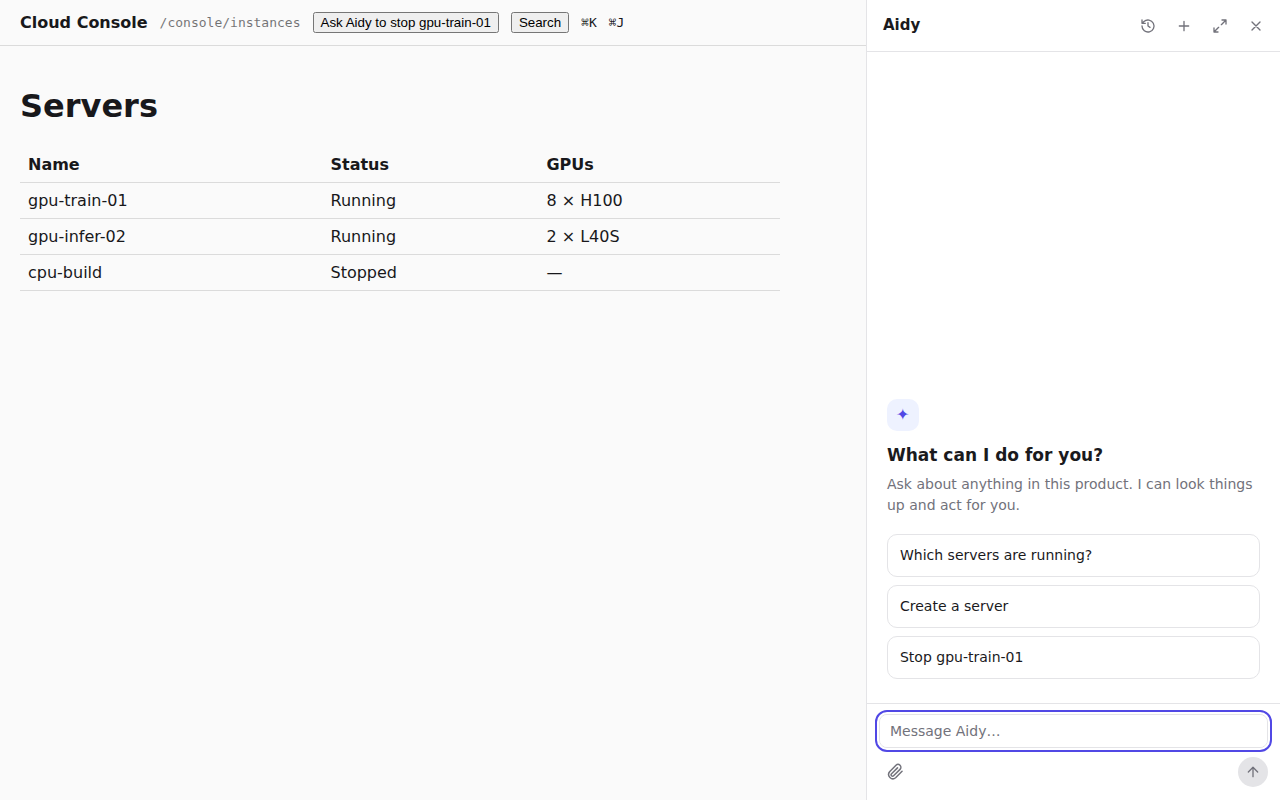
A product with rungent has an assistant beside its pages, the dock, and a search box on ⌘K. The
examples on this page use a cloud console at console.example.com, where you keep servers. The
assistant acts as you: it sees what you may see, can do what you may do, and changes nothing until
you approve it.
Open the assistant#
Press ⌘J (Ctrl+J on Windows and Linux), or the product's assistant button. The dock opens beside the page and moves the page over instead of covering it, so the server list it changes stays in view. Press ⌘J or Escape to close it.
- Resize it by dragging its edge, between 360 and 640 pixels; the product remembers the width.
- Expand it to fill the page, with your earlier conversations listed beside the answer. Escape goes back to the side panel.
- On a phone it fills the screen.
The dock stays open, with its conversation, while you move between pages. It knows the page you are on, so "stop this one" means the server on screen.
Ask and attach#
Type a question or a request and press Enter; Shift+Enter starts a new line. An empty conversation offers suggestions to start from. The answer streams in, and what the assistant looks up shows as short rows ("Searched for “gpu”", "1 result"); open Details on a row to see what it asked for and got back. Stop ends the answer early.
When the product allows attachments, attach files with the paper clip, by pasting, or by dropping them on the dock: screenshots of an error, a log, a config file. A message takes up to 10 images and documents, each up to 5 MB. The assistant reads text documents; whether it reads images depends on the models the product chose.
The ring next to the composer shows how much of the conversation the assistant can still keep in mind. When it fills up, start a new conversation.
Think before answering#
When the product lets you choose, the composer has a Think switch, next to the ring. On, the model thinks before it answers: better for a hard question, such as why a deployment keeps failing, and about twice as slow. Off, it answers at once, which suits everyday lookups and changes. The switch starts where the product set it, and your browser remembers your choice. While the assistant thinks, its reasoning shows in the answer's trace.
Fill in a form#
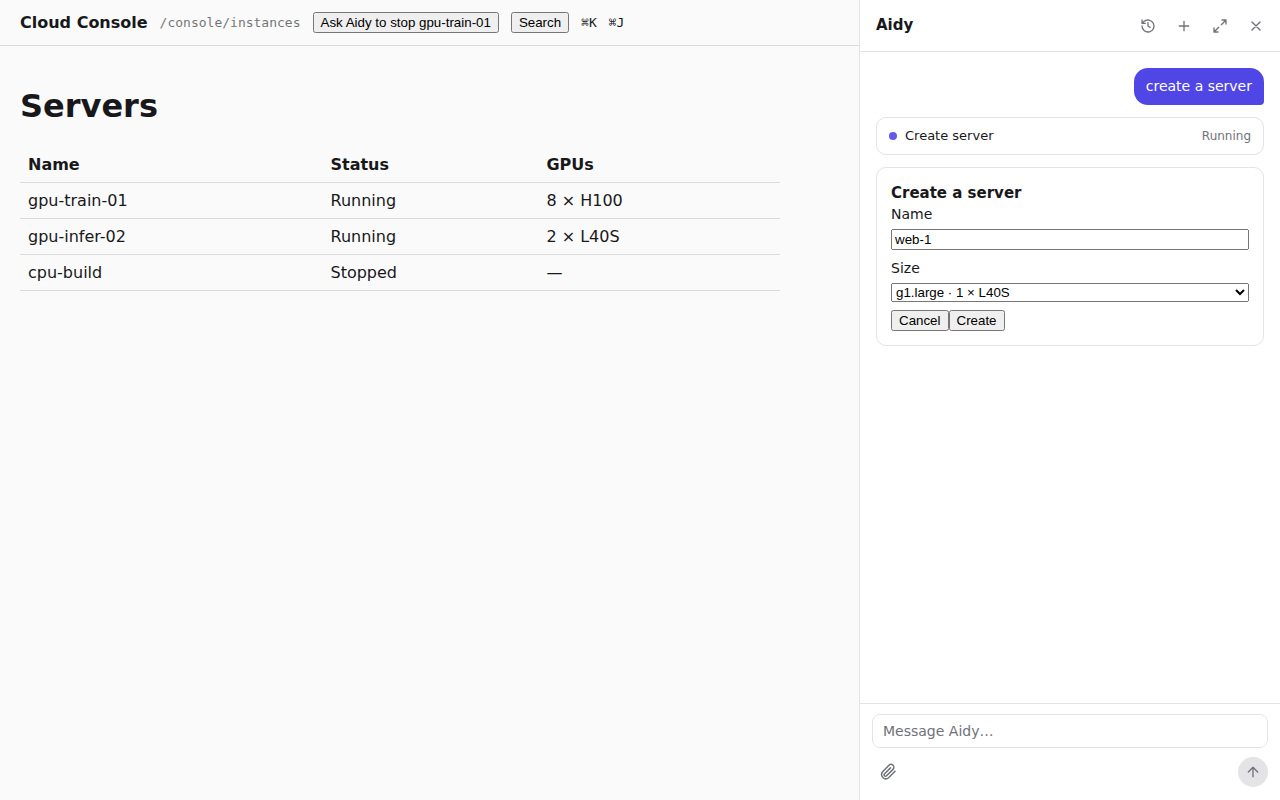
Ask to create or change something, "create a GPU server called train-01", and the product's own form opens in the conversation, filled in with what you said. It is the form the product's page uses, with the same choices and checks. Complete it and press Submit, or Cancel to drop the request. If something does not fit, the form opens again with what to fix, and nothing runs.
Approve a change#
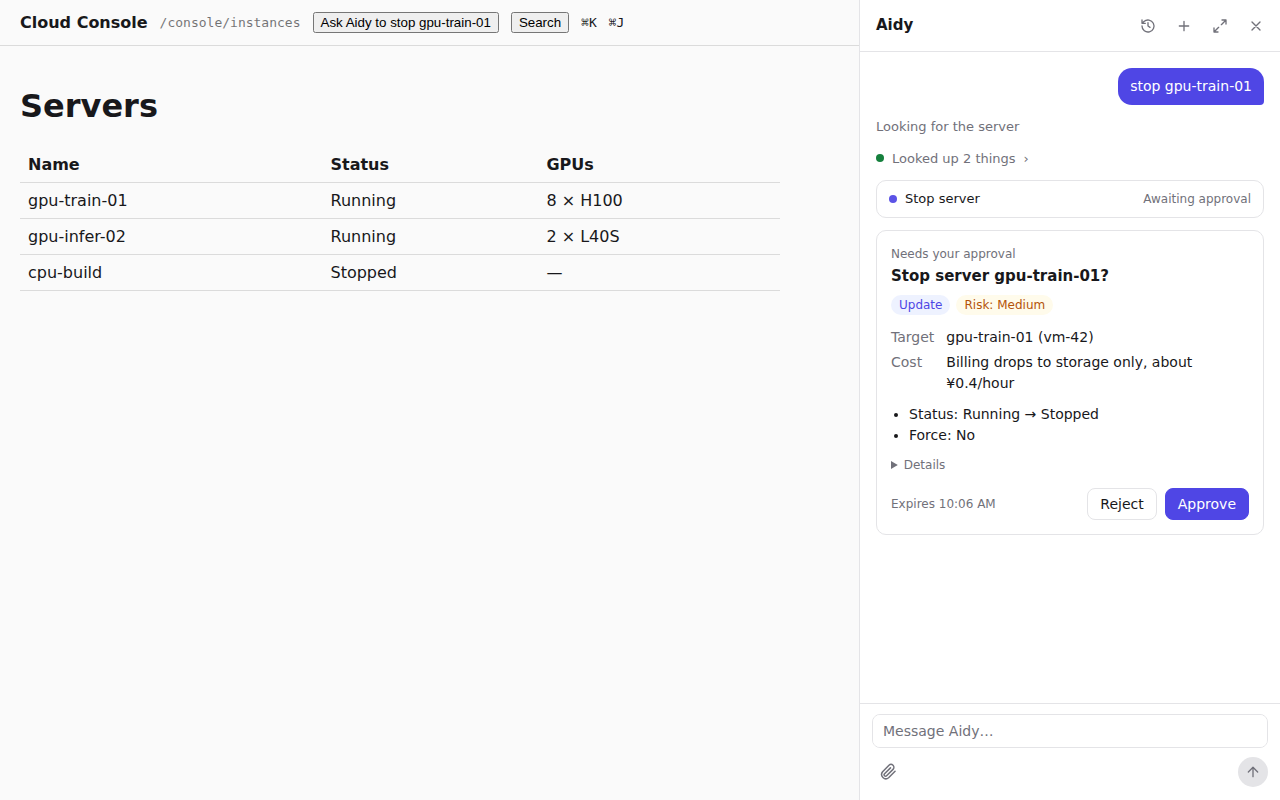
Before any change, the assistant shows a card: what it will do, to what ("gpu-train-01", even when you typed only part of the name), the changes, and where the product says so, the risk and the cost. Press Approve to run exactly what the card shows, or Reject to run nothing.
- An approved change always finishes, even if you close the page.
- A card expires after 15 minutes. Ask again to retry.
- Rejecting a card ends that answer: nothing runs, and the step shows "Rejected, nothing changed". Your next message starts afresh.
- When you don't say which record you mean ("reply to the customer"), the assistant asks with a card before it proposes a change.
Answer a question#
When your request could mean two things, "stop the gpu server" with two servers named alike, the assistant asks which one you mean and offers the choices. Pick one, or write your own answer when the question offers Other.
Read the sources#
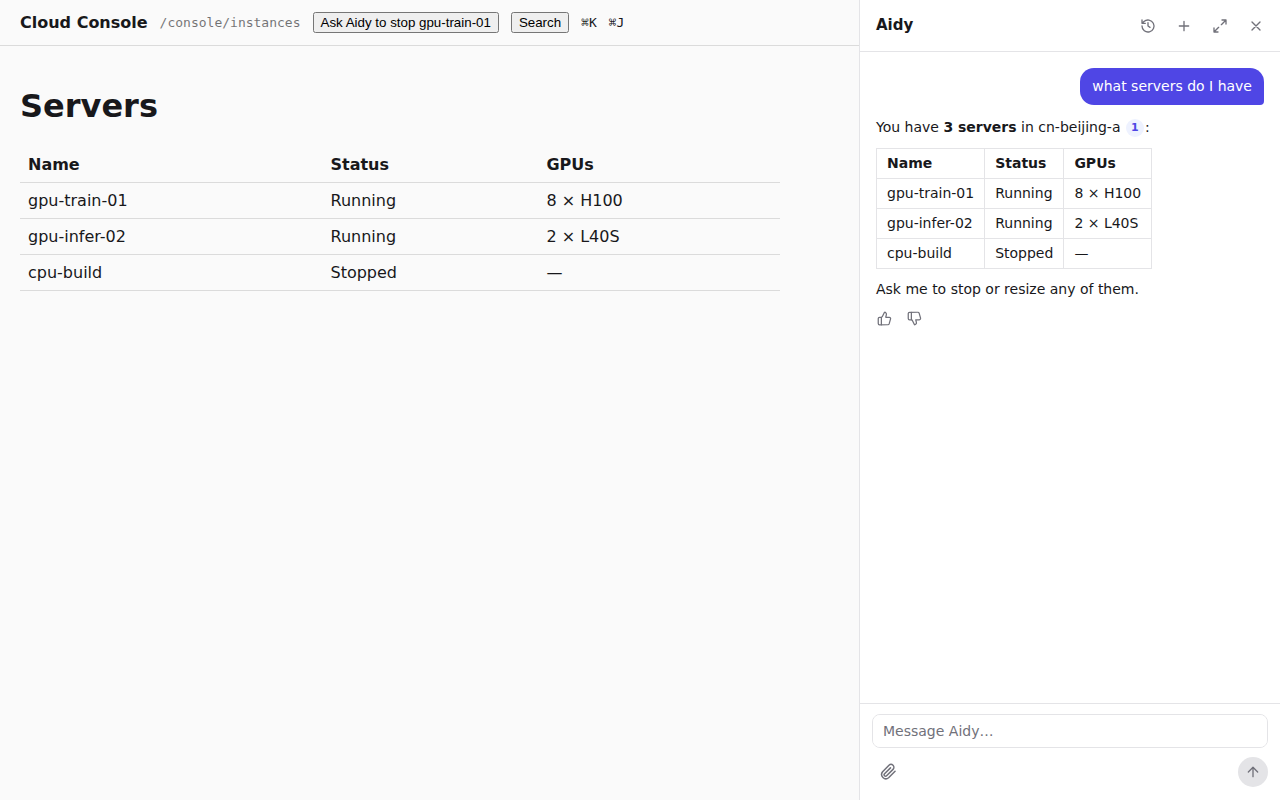
The assistant answers questions about the product from what it looked up and from the product's docs. A numbered mark after a sentence links the page or the item it came from. When nothing answers the question, it says so instead of guessing.
Rate an answer#
Under an answer, thumbs up or thumbs down tells the product's team whether it helped. Thumbs down asks what went wrong; the comment is optional.
Search with ⌘K#
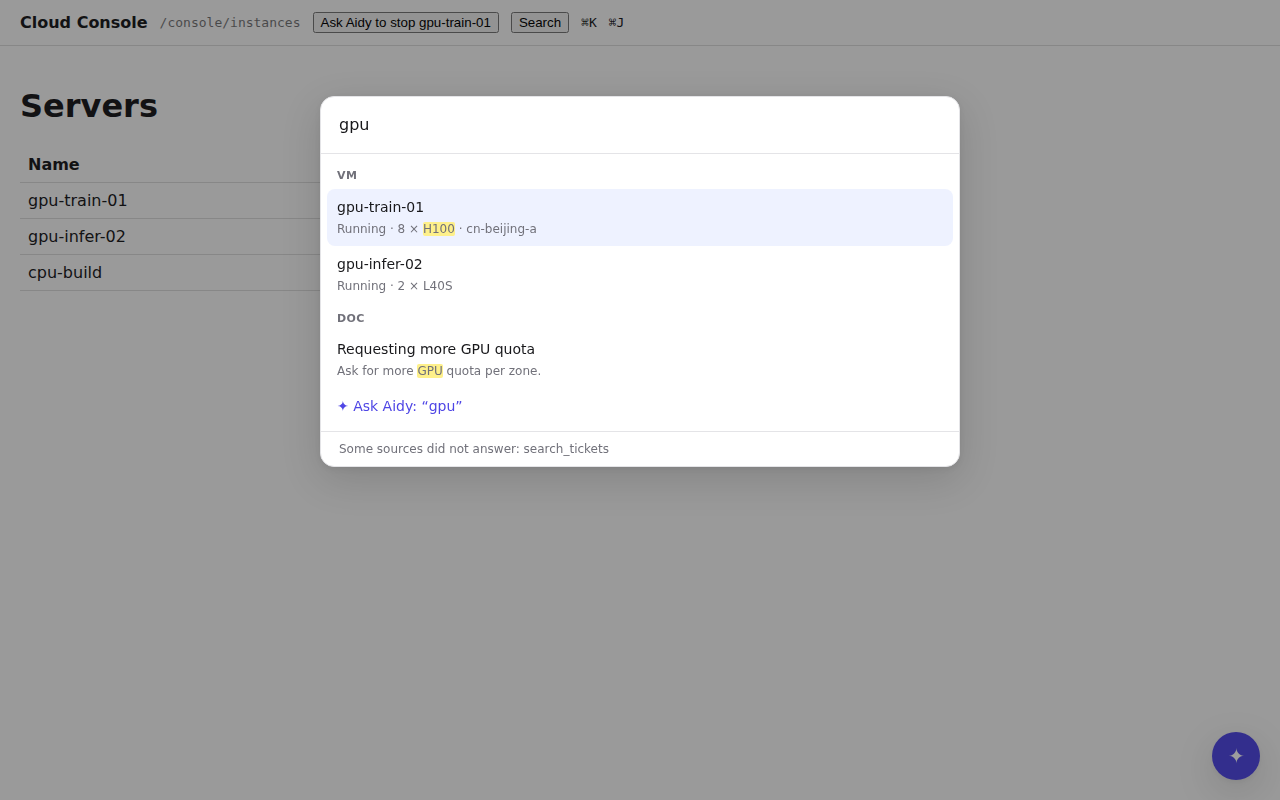
Press ⌘K (Ctrl+K), or the product's search button on a phone, and type. Results from everything you may see, servers, projects and the product's docs, come back in one list, grouped by type. Arrow keys move, Enter opens a result, and the last row, Ask, hands your words to the assistant as a question. A source that did not answer in time is named at the bottom.
Your conversations#
Conversations are yours alone: nobody else in the product can read them. They belong to the organization you work in, so the same account in two organizations has two separate histories. New chat starts a conversation; the history lists earlier ones, and each can be deleted. The assistant answers in your language unless you write in another.
When something goes wrong#
| You see | What to do |
|---|---|
| "Model busy, retrying" | Nothing: the assistant is moving to another model, and the answer goes on. |
| "The model is unavailable right now" | Every model the product uses is busy or out of credit. Try again later. |
| "This took too many steps" | Ask for less at once, such as one server instead of all of them. |
| "Answer or dismiss the open request first" | A card, form or question above is waiting. Answer it, or cancel it. |
| A change you expected is not offered | You may not make it in the product either, or the product has not opened it to the assistant. |
Where to go next#
Use the CLI does the same from a terminal, and Use MCP from your own agent.
For agents: use-the-assistant.mdEdit this page